Segmented tubes in Photoshop Tutorial

How to make a segmented Tube in Photoshop
1.
Create a new layer and make a retangular selection.

2
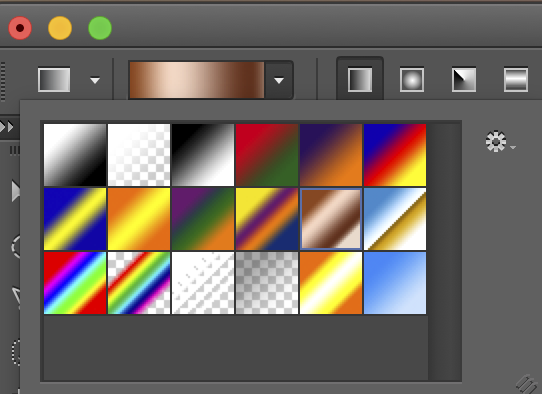
Select the linear gradient tool and the copper gradient.
3
Drag from the top to the bottom of the selection, you now have a copper pipe. (Tip: hold down the short key for a perfectly vertical line)

4
For this excercise we want a chrome pipe, so suck all the color out by going Shift+Ctrl/Cmd+U to desaturate the image. Or select desaturate from the menu.

5
Now to make it more shiny chrome, open our famous curves box and use a similar curve.
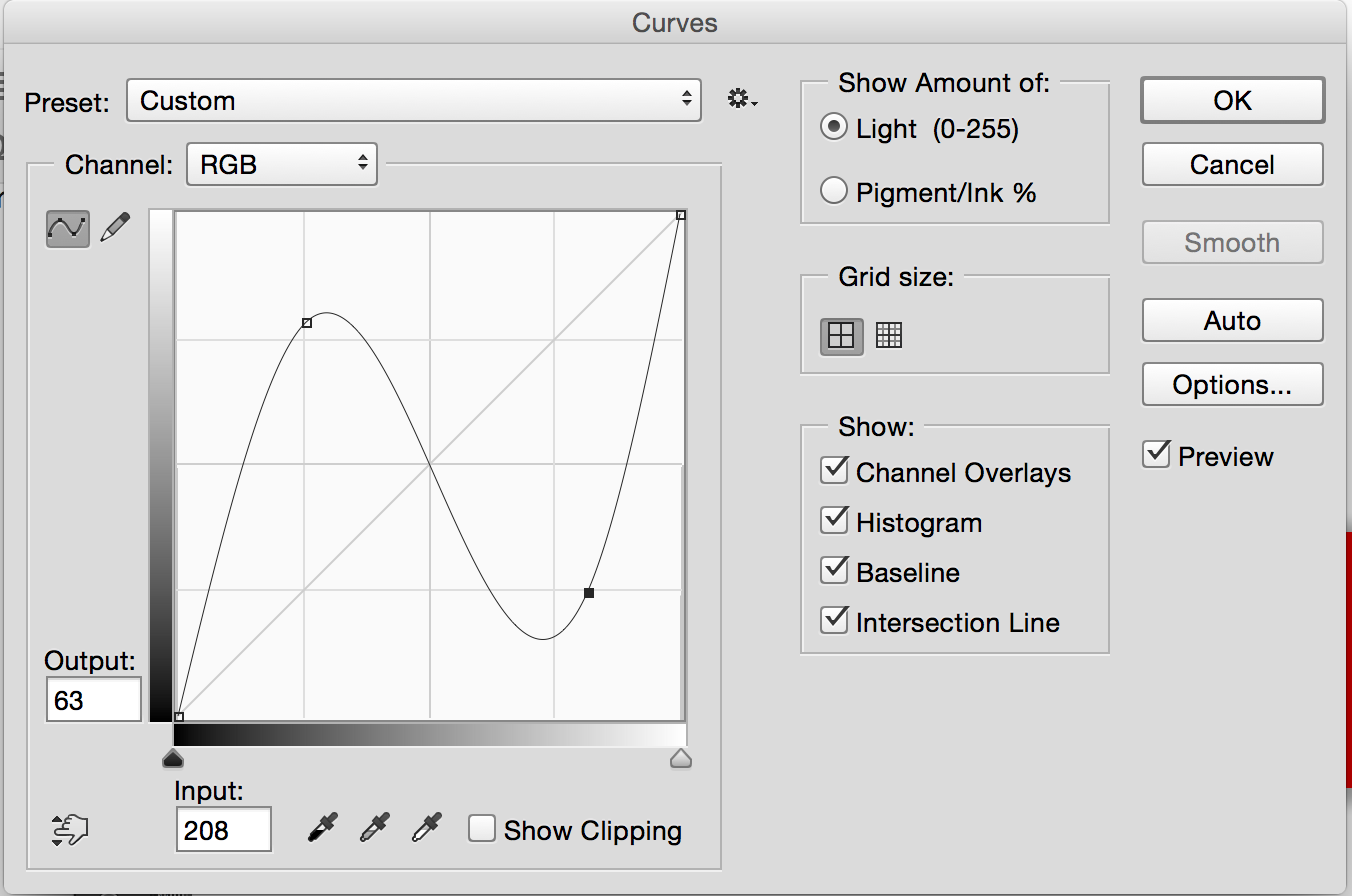
Typically, I would recommend using adjustment layers, in this case, it’s ok to apply the curve directly onto the image. (Ctrl/Cmd+M)
6
And we now have a shiny Chrome pipe..

7
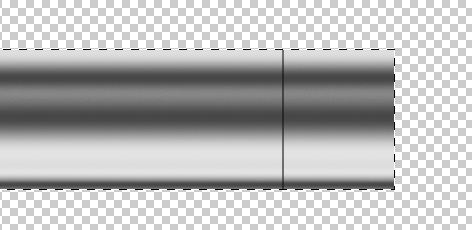
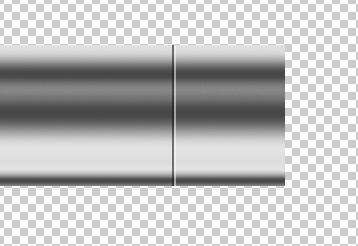
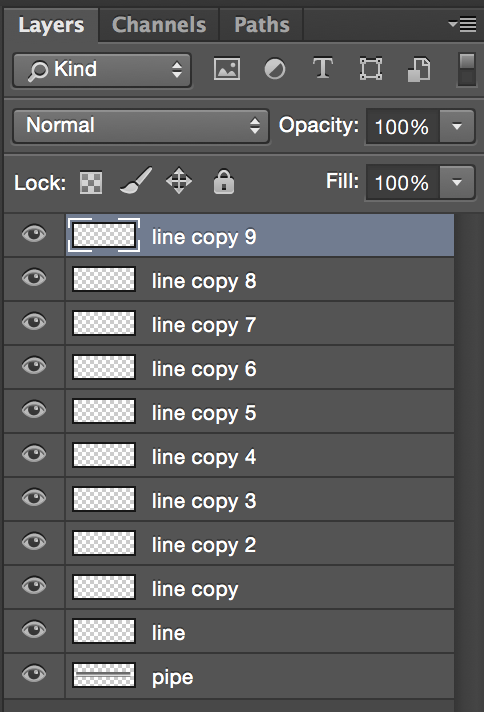
To add the segments: Create a new layer and draw a 2 pixel line in black. (use the line tool in the pixel mode) If the selection is still active, you won’t have to trim the lies later.
8
Duplicate the layer Ctrl/Cmd+J and press Ctrl/Cmd+I to invert the color (making the copy white), press the right keyboard arrow key 2x to nudge the white line over. Change it to overlay mode in the layer mode menu (optional).
We now have a realistic looking indent in the pipe.
9
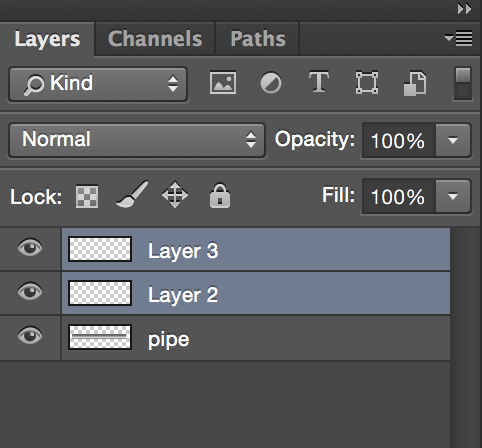
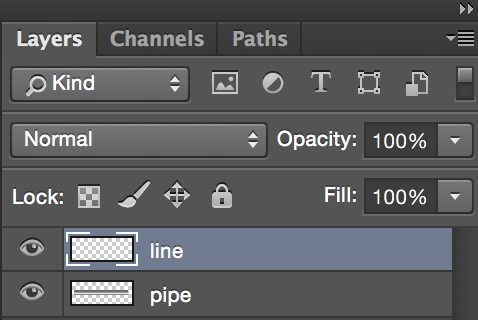
Select the 2 lines and Ctrl/Cmd+E to merge into a single layer
10
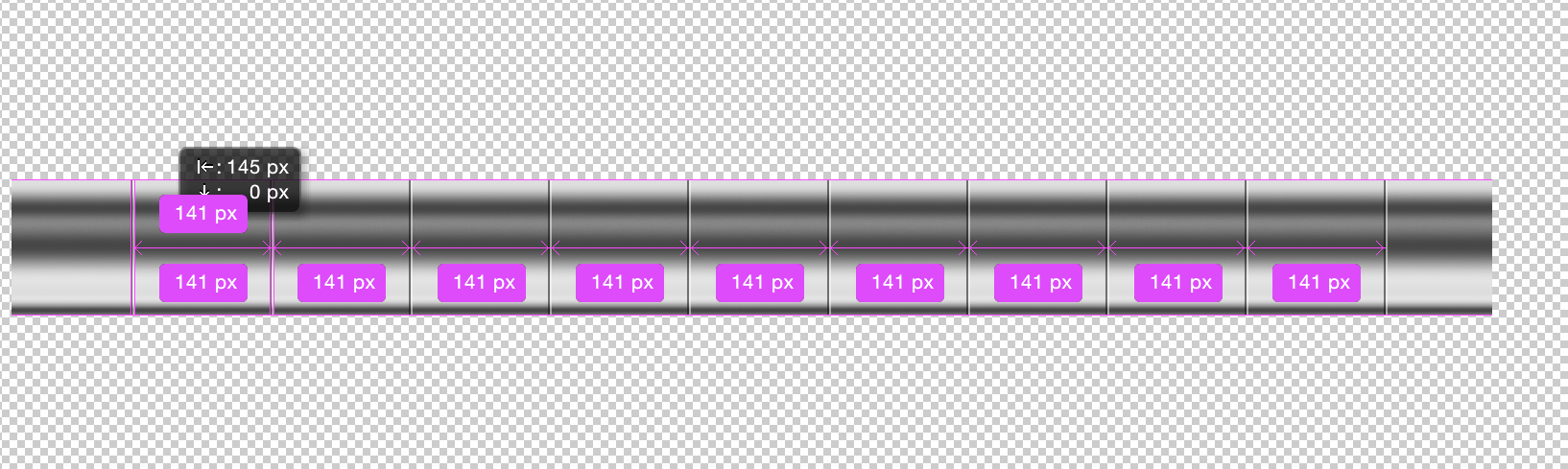
Alt/Option+Shift and drag the lines to duplicate them along the pipe.
If you are using Photoshop CC 2014 or newer, you will notice the smart guides will tell you when you have exactly the same distance between lines as you duplicate and drag them out.
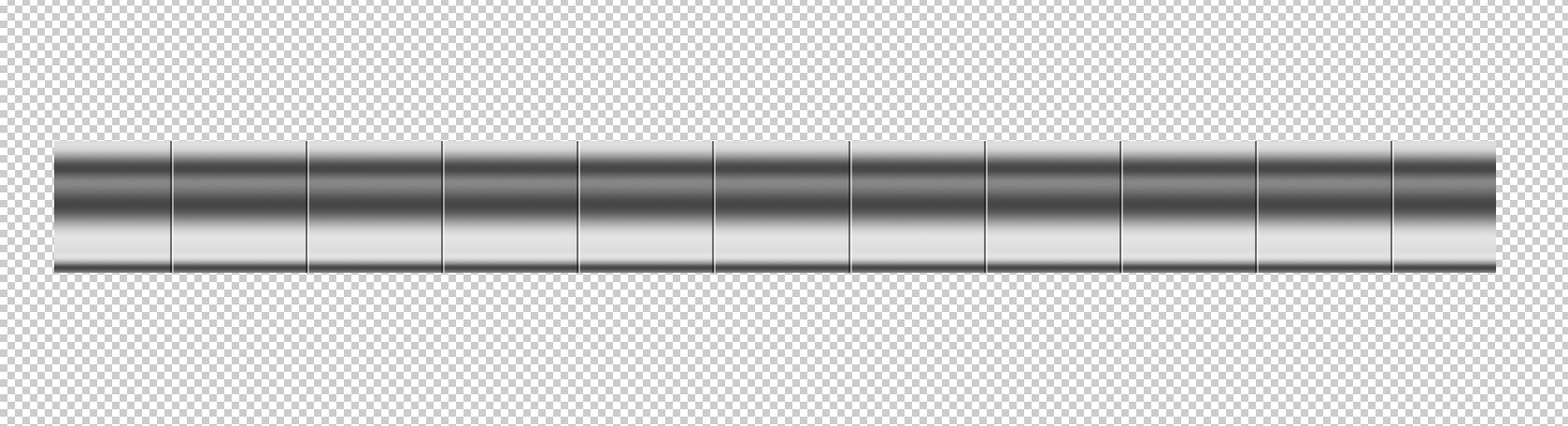
Final
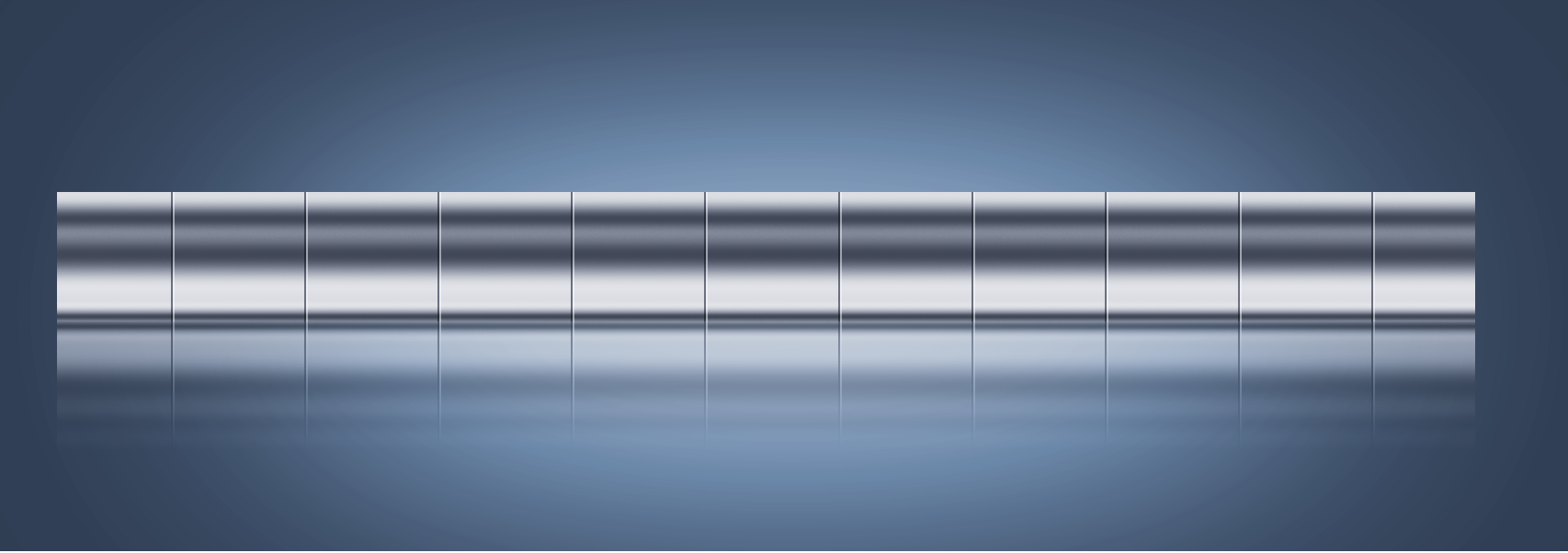
Here is a finished one with some color and a reflection added

Keep growing with Premium Courses
Photoshop 2026 for Digital Photographers
Learn Photoshop properly, from the basics to pro retouching, step by step.
$129.00 · one-time purchase · instant download

Free for you
The Photoshop Vault
Get my free Layer Blending Modes ebook along with dozens of exclusive Photoshop goodies: actions, brushes, presets and cheat sheets.
You're on the list, so your free goodies are waiting for you in the Vault.
Get Free Photoshop Goodies Open the Vault
Water splashes and drops in Photoshop Photoshop Tutorial
Ever wondered how they get those drops of water to look so realistic? Its time to give your images a baptism! Read tutorial
Collaging in Photoshop Photoshop Tutorial
More collaging techniques for Photoshop, using channels and layers.This is a bit more in depth than some of the other tutorials, you... Read tutorial
How to make re-usable graffiti in Photoshop tutorial
Time to tag your images in Photoshop, here's the tutorial on creating reusable graffiti in Photoshop. Read tutorial
Round Glassy Buttons in Photoshop Photoshop Tutorial
An interface would never be complete without the little buttons that appear to be made of glass. This tutorial will show you... Read tutorial
Hollywood style searchlight in Photoshop Tutorial
Create a hollywood style, spotlight effect. This tutorial came about as a result of a request from the forums. This effect will... Read tutorial